




Mac backup is a different conversation than Windows or Linux, mostly because macOS already ships with a genuinely good free tool. Time Machine covers the basics for most people without anyone needing to go looking for alternatives. Where this list gets useful is past that point – off-site cloud copies, commercial-use licensing, and the kind of control Time Machine deliberately doesn’t give you. Five tools below, starting with what’s already on your Mac and moving outward from there.
One framing worth keeping in mind: nothing free on this list does Windows-style disk imaging with bootable recovery media. Time Machine can restore a Mac through macOS Recovery, but everything else here is a file-level backup tool, not a disk-imaging product.
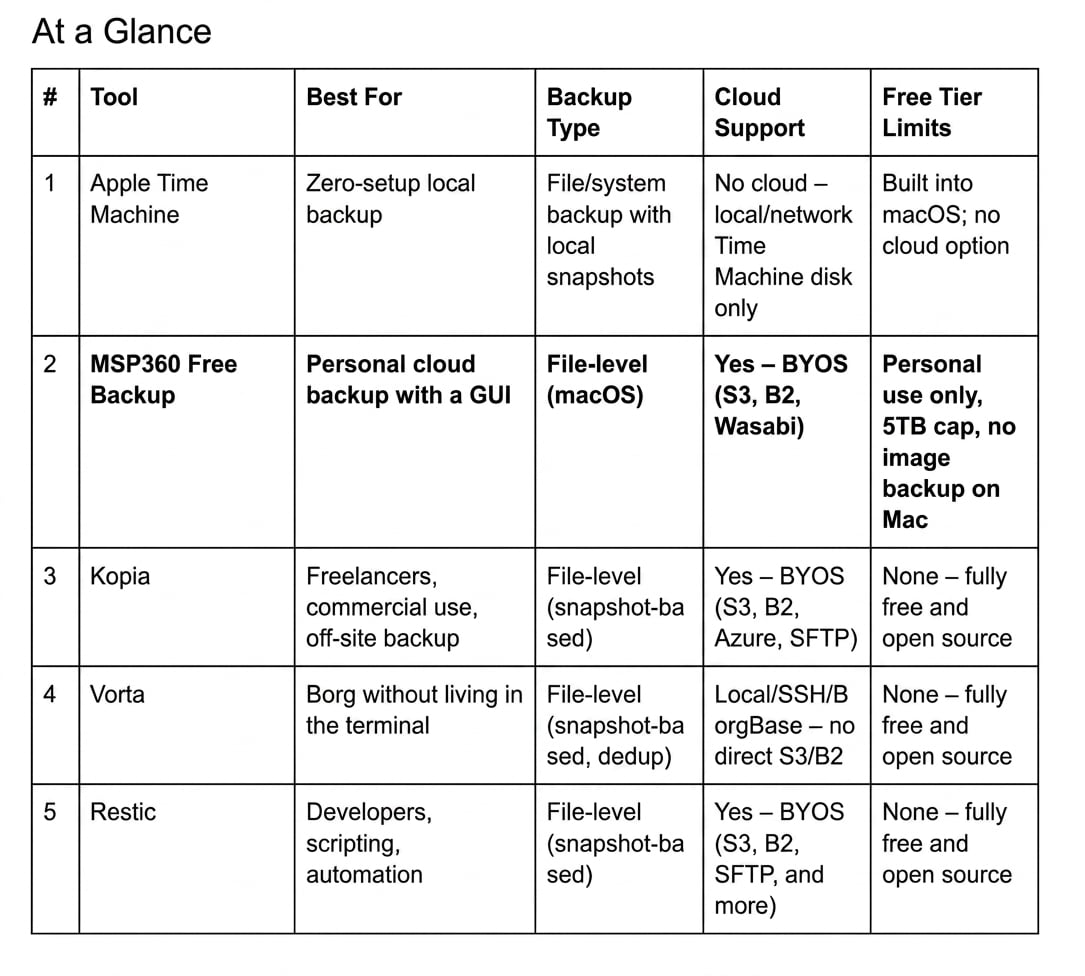
At a Glance
Who Should Read This
Most Mac users don’t need to read past Time Machine. Plug in a drive, turn it on, done – it’s already solved your problem.
You’ll want something more if you’re a freelancer or small business that needs off-site backup with a license that actually permits commercial use. Kopia is the clear pick here; MSP360 Free covers the cloud workflow but stays personal-use-only no matter how you configure it.
Power users who already think in terms of repositories, encryption keys, and SSH access get more out of Vorta or Restic – both built on tools that don’t care what platform they’re running on.
What to Look For
Time Machine and everything else on this list solve different problems, so the usual criteria need a Mac-specific filter.
Local vs. off-site is the first fork. Time Machine is excellent local protection and has zero off-site story – no cloud option exists, full stop. Everything else here exists specifically to fill that gap.
Retention control matters more than people expect. Time Machine manages its own retention automatically and starts deleting your oldest backups the moment the destination drive fills up, with no manual override. Kopia, Vorta, and Restic all give you actual retention policies you set yourself.
Commercial-use licensing carries over from the other platforms: MSP360 Free is personal-use-only regardless of OS. Kopia, Vorta, and Restic are open source with no such restriction.
Interface style spans the full range here – Time Machine and MSP360 are GUI-first with almost no configuration required, Vorta is a GUI wrapped around a CLI tool, and Restic has no GUI on macOS at all.
1. Apple Time Machine – Still the Right Default
There’s a reason nobody really needs convincing to use Time Machine: plug in an external drive, flip it on in System Settings, and macOS handles the rest. It also works with a supported network backup disk – a NAS with Time Machine support, for instance – though most people just point it at whatever drive is sitting on the desk. Backups run hourly for the past 24 hours, daily for the past month, and weekly after that, for as long as the drive has room. Less known: Time Machine also keeps temporary local snapshots on your internal drive even without an external drive connected, which is why you can sometimes recover a file you deleted an hour ago even if you forgot to plug anything in.
Restoring is just as low-friction. Pull back individual files through the Time Machine browser, or boot into macOS Recovery and restore an entire Mac from scratch – no separate software, no license to manage.
What you give up is control. Once the destination fills, Time Machine deletes the oldest backups on its own – there’s no way to tell it “keep everything for two years” instead. And there’s no cloud option whatsoever; everything lives on whatever drive you point it at, which means a house fire or stolen laptop bag takes your backup with it.
2. MSP360 Free Backup – Best GUI Option for Off-Site Backup on Mac
MSP360 Free Backup fills the gap Time Machine leaves wide open: a real off-site cloud copy, configured through an actual desktop app rather than a terminal. The Mac version runs as a standalone GUI application – launch it, click Backup Files, pick what to protect, choose a destination, set a schedule. That wizard-style flow puts it much closer to the Windows experience than to MSP360’s own CLI-first positioning on Linux.
The catch is scope: macOS backups here are file-level only, not full disk images. That’s a real limitation if you’re picturing something like Windows-style bare-metal recovery – it doesn’t exist in this product on Mac. What you do get is a bring-your-own-storage cloud model: connect your own Backblaze B2, Wasabi, or S3-compatible account, and back up to it alongside local drives or network shares. The free edition caps total backup data at 5TB across cloud and local combined, and transfers are TLS-encrypted.
Licensing is personal-use-only, same as everywhere else this tool shows up, and it’s not intended for managed business environments. A CLI is available underneath for anyone who wants to script around the GUI, but on Mac, the GUI is genuinely the front door – unlike the Linux version, where the company leans on cron and the command line instead.
3. Kopia – Open Source, Commercially Licensed, Genuinely Cross-Platform
Kopia earns its spot for solving the one problem MSP360 Free can’t: it’s free for actual commercial use. No personal-use clause, no domain restriction, nothing to outgrow. On macOS, it runs as a native-feeling desktop app (KopiaUI) sitting on top of a CLI, and handles encryption, deduplication, and scheduling without you touching a config file.
Storage destinations are about as broad as this category gets – S3-compatible buckets, Backblaze B2, Azure Blob, Google Cloud Storage, SFTP, WebDAV, plus the usual local and network drives, all through your own accounts. Nothing routes through Kopia’s own infrastructure, so there’s no markup sitting between you and your storage bill.
It’s not a five-minute setup the way Time Machine is. You’ll spend a little time understanding repositories and policies before it clicks, and since Kopia hasn’t been around nearly as long as Restic, it’s worth actually testing a restore rather than assuming the backup is good. Paired with Time Machine – Time Machine for fast local recovery, Kopia for the off-site copy – it covers ground neither one does alone.
4. Vorta – Borg Backup Without the Terminal
Vorta takes BorgBackup, which is entirely command-line by design, and wraps it in a real macOS app: backup profiles, a scheduler, an archive browser, individual file restore. Everything Borg does well underneath – deduplication, compression, authenticated encryption – comes along for free, minus the part where you’d otherwise need to remember CLI flags.
It’s worth knowing Vorta’s Mac experience has a few rough edges. It behaves more like a utility popup than a full citizen app – no Cmd-Tab switching, no menu bar, not something you’ll find sitting in the Dock. If you want to mount a backup and browse it like a folder rather than extracting files one at a time, you’ll need macFUSE and a Borg build with FUSE support installed separately.
Storage-wise, Vorta sticks close to what Borg itself supports: local drives, your own server over SSH, or BorgBase, a hosting service built specifically for Borg repositories. Direct S3 or Backblaze B2 buckets aren’t part of the picture – that’s Kopia’s lane, not this one.
5. Restic – When You’d Rather Script It Yourself
Restic doesn’t pretend to be a Mac app. There’s no GUI, no menu bar icon, nothing to click – it’s a CLI tool you run yourself or wire into launchd for scheduling, the macOS equivalent of a cron job. In exchange, you get a fast, snapshot-based backup tool that only stores what changed after the first run, with every snapshot independently restorable.
Encryption happens automatically using a key tied to your password, so the repository is meaningless without it. Destinations include local drives, SFTP servers, and the major cloud providers – S3-compatible storage, Backblaze B2, Azure, Google Cloud – all configured through environment variables or a config file rather than a settings screen.
If you’re the type who’s already comfortable with Homebrew and a terminal window, this is hard to beat for free. If a settings screen sounds more appealing than a man page, Kopia gets you most of the same capability without asking you to write your own automation.
FAQs
Does Ti me Machine back up to the cloud? No. Time Machine has no native cloud backup option – it works with local drives or a supported network backup disk, not iCloud, S3, or any other cloud storage. If you want an off-site copy, you’ll need to add a second tool like MSP360 or Kopia alongside it.
If I’m already using Time Machine, do I still need one of these? For off-site protection, yes. Time Machine handles fast local recovery well, but a drive sitting next to your Mac doesn’t help if your house floods or the laptop gets stolen along with the backup drive. Pairing Time Machine with a cloud-capable tool covers both scenarios.
Can Migration Assistant restore from Kopia or Restic backups? No – Migration Assistant is built specifically around Time Machine backups. Restoring from Kopia, Vorta, or Restic means using each tool’s own restore process, which works fine but isn’t integrated into macOS setup the way Time Machine is.
What’s the real difference between free and open source here? MSP360 Free is a limited free tier of a commercial product – personal use only, with the cloud workflow as the main draw. Kopia, Vorta, and Restic are all open source, which means broader usage rights and nothing held back for a paid tier, in exchange for more setup on your end.
Is a Time Machine drive enough protection against ransomware? Not on its own. A drive that’s permanently connected to your Mac is just as reachable by ransomware as your internal disk. Rotating an offline drive, or pairing Time Machine with cloud storage that supports immutability, closes that gap – Time Machine’s own retention settings won’t.
Should I run more than one of these at once? It’s common, and arguably the right move. A typical setup: Time Machine for fast local recovery, plus Kopia or MSP360 for an encrypted off-site copy. They’re solving different failure scenarios, not competing for the same job.
Where This Leaves You
The short version: Time Machine if you haven’t set up backup yet and want the path of least resistance, MSP360 if you want cloud backup through a GUI without paying for it, Kopia if commercial licensing or broader cloud support matters, Vorta if you like Borg but not the terminal, Restic if the terminal is exactly where you want to be.
None of these replace each other completely – that’s sort of the point. Time Machine’s local snapshots and a cloud-capable tool’s off-site copy are solving two different disasters, not the same one twice.
Whichever combination you land on, restore something from it before you actually need to. A backup nobody’s tested is just a folder you’re hoping about.
Join our LinkedIn group Information Security Community!